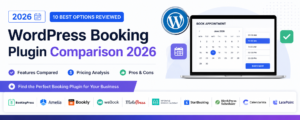

Discover the best WordPress booking plugin for your business. Step-by-step installation guide, feature comparison, and expert tips.
Start free today.
Finding the right WordPress booking plugin can transform how your business handles appointments, reservations, and customer management. With over 60% of consumers preferring to book services online, having a reliable booking system isn’t optional anymore—it’s essential for survival.
This comprehensive guide walks you through everything you need to know about WordPress booking plugins in 2026. You’ll learn how to choose the right solution, install it correctly, and optimize it for maximum conversions. Whether you run a salon, consulting firm, or fitness studio, this guide has you covered.
What You’ll Learn:
- Essential features every booking plugin must have
- Step-by-step installation and configuration
- Optimization strategies for higher conversion rates
- Common mistakes to avoid
- How to integrate with your existing tools
Why Your WordPress Site Needs a Booking Plugin
The shift toward online booking has accelerated dramatically. According to recent studies, businesses that offer online booking see an average increase of 37% in appointments compared to those relying solely on phone calls or walk-ins.
A WordPress booking plugin eliminates the back-and-forth communication that frustrates both you and your customers. Instead of playing phone tag or waiting for email responses, clients can view your availability and book instantly—any time of day or night.
The Real Cost of Not Having Online Booking
Consider this scenario: A potential client visits your website at 10 PM, ready to book an appointment. Without an online booking system, they have two choices—wait until morning to call you, or find a competitor who offers instant booking. Most choose the latter.
Research shows that 67% of consumers prefer booking appointments online rather than calling. By not offering this option, you’re essentially turning away two-thirds of potential customers before they even interact with your business.
| Factor | Without Booking Plugin | With Booking Plugin |
|---|---|---|
| Booking Availability | Business hours only | 24/7 availability |
| Staff Time Required | 15-20 minutes per booking | 0 minutes (automated) |
| No-Show Rate | 20-30% | 5-10% (with reminders) |
| Customer Satisfaction | Variable | Consistently high |
| Double Bookings | Common occurrence | Eliminated |
Benefits Beyond Convenience
The advantages extend far beyond simple convenience. A well-implemented booking system with CRM capabilities provides valuable insights into customer behavior, helps you identify peak hours, and enables data-driven decisions about staffing and service offerings.
You’ll also reduce administrative overhead significantly. Tasks that once required dedicated staff—answering phones, sending confirmation emails, managing calendars—happen automatically. This frees your team to focus on delivering exceptional service rather than managing logistics.
Essential Features to Look For
Not all WordPress booking plugins are created equal. Before committing to any solution, ensure it includes these critical features that separate professional tools from basic calendar widgets.
1. Real-Time Calendar Synchronization
Your booking plugin must sync with external calendars like Google Calendar, Outlook, and Apple Calendar. This prevents double-bookings and ensures your availability is always accurate, even when you add personal appointments outside the system.
Look for two-way synchronization—changes made in either system should reflect in both. One-way sync creates gaps where conflicts can occur, leading to frustrated customers and scheduling nightmares.
2. Automated Email and SMS Reminders
No-shows cost service businesses thousands of dollars annually. Automated reminder systems reduce no-show rates by up to 90% by sending confirmations immediately after booking and reminders 24-48 hours before appointments.
The best plugins allow customization of reminder timing and content. You might want to include preparation instructions, parking information, or cancellation policies in these communications.
3. Flexible Payment Processing
Modern booking systems should support multiple payment options:
- Pay at time of booking: Reduces no-shows dramatically
- Deposit collection: Balance flexibility with commitment
- Pay later: Appropriate for certain service types
- Package purchases: Sell multiple sessions upfront
Integration with popular payment gateways like Stripe, PayPal, and Square is essential. Avoid plugins that lock you into a single payment processor or charge excessive transaction fees on top of standard processing rates.
4. Customer Management (CRM) Capabilities
Standalone booking is useful, but integrated CRM functionality transforms your booking system into a complete business management tool. You should be able to:
- View complete customer booking history
- Add notes and preferences to customer profiles
- Segment customers for targeted marketing
- Track lifetime value and visit frequency
- Identify VIP customers automatically
5. Mobile Responsiveness
Over 60% of bookings now happen on mobile devices. Your booking interface must work flawlessly on smartphones and tablets—not just technically function, but provide an excellent user experience.
Test any plugin thoroughly on mobile before committing. Pay attention to form fields (are they easy to tap?), calendar navigation (can users scroll through dates easily?), and checkout flow (are payment forms mobile-optimized?).
6. Staff Management
If you have multiple team members, look for robust staff management features:
- Individual staff calendars and availability
- Service assignments (who can perform which services)
- Different pricing per staff member
- Break time and vacation management
- Performance tracking and reporting
7. Customization Options
Your booking form should match your brand identity. Look for customization options including:
- Color scheme matching
- Custom form fields
- Booking flow modifications
- Email template customization
- Multi-language support
Step-by-Step Installation Guide
Installing a WordPress booking plugin is straightforward when you follow the correct process. This guide ensures you avoid common pitfalls that cause headaches later.
Before You Begin: Preparation Checklist
Complete these steps before installing any plugin:
- Backup your website: Use a plugin like UpdraftPlus or your hosting provider’s backup tool
- Check WordPress version: Ensure you’re running the latest version
- Review server requirements: Most booking plugins require PHP 7.4+ and MySQL 5.6+
- List your services: Document all services you offer, including duration and pricing
- Define your availability: Know your working hours, breaks, and holidays
Installation Process
Method 1: Installing from WordPress Repository
- Log into your WordPress dashboard
- Navigate to Plugins → Add New
- Search for your chosen booking plugin
- Click “Install Now” and wait for completion
- Click “Activate” to enable the plugin
Method 2: Installing Premium Plugins
- Download the plugin ZIP file from the vendor (such as Javistab)
- Go to Plugins → Add New → Upload Plugin
- Choose the ZIP file and click “Install Now”
- Activate after installation completes
- Enter your license key if required
Post-Installation Setup
After activation, most booking plugins launch a setup wizard. Follow these steps for optimal configuration:
- General Settings: Set timezone, date format, and currency
- Business Information: Add your business name, address, and contact details
- Working Hours: Define your standard operating schedule
- Services: Add each service with duration, price, and description
- Staff Members: If applicable, add team members and assign services
- Payment Settings: Connect your payment gateway
- Notification Settings: Configure email templates and triggers
Configuring Your Booking System
Proper configuration separates successful implementations from those that frustrate customers and create more work than they save. Take time to set up each element correctly from the start.
Service Configuration Best Practices
When setting up services, consider these optimization strategies:
Buffer Time: Add buffer time between appointments for preparation, cleanup, or unexpected delays. A 10-15 minute buffer prevents back-to-back stress and improves service quality.
Service Descriptions: Write clear, benefit-focused descriptions. Instead of “60-minute massage,” try “60-minute deep tissue massage—release tension and leave feeling completely relaxed.”
Service Grouping: Organize services into logical categories. Customers should find what they’re looking for within two clicks.
Availability Settings
Configure your availability thoughtfully:
- Minimum advance notice: How much time do you need before an appointment? 24 hours is common, but this varies by business type.
- Maximum advance booking: How far ahead can customers book? 30-90 days works for most businesses.
- Slot duration: Should time slots align with service duration, or use fixed intervals?
- Break times: Block lunch breaks and personal time to prevent burnout.
Payment Configuration
Set up payments to reduce no-shows while remaining customer-friendly:
Consider requiring deposits rather than full payment upfront. A 25-50% deposit creates commitment without being prohibitive. Full payment often works better for lower-priced services.
Define clear cancellation policies and communicate them at booking. Standard options include:
- Free cancellation up to 24/48 hours before
- 50% refund for late cancellations
- No refund for no-shows
Optimization for Maximum Bookings
Installation and configuration are just the beginning. These optimization strategies increase your booking conversion rates and revenue.
Booking Page Design
Your booking page design directly impacts conversion rates. Follow these principles:
Reduce friction: Every additional field or step reduces completions. Ask only for essential information during booking—collect additional details later.
Show social proof: Display review ratings, testimonials, or booking counts near your booking form. “Join 500+ satisfied customers” builds confidence.
Create urgency appropriately: If slots are limited, show availability. “Only 2 slots remaining this week” encourages action without being manipulative.
Strategic CTA Placement
Place booking calls-to-action throughout your website:
- Homepage hero section
- Service pages (after descriptions)
- About page (after credentials)
- Blog posts (within relevant content)
- Site header (always visible)
- Footer (catch scrollers)
Speed Optimization
Slow booking pages kill conversions. Ensure your booking system loads quickly by:
- Using a quality hosting provider
- Enabling caching (but exclude booking pages from page cache)
- Optimizing images
- Minimizing additional plugins
For more conversion optimization strategies, read our guide on increasing booking conversions.
Integration with Other Tools
Maximize your booking system’s value by connecting it with other business tools.
Calendar Integration
Sync with Google Calendar, Outlook, or Apple Calendar to manage all appointments in one place. This prevents double-bookings when you add personal appointments.
Email Marketing Integration
Connect with email platforms like Mailchimp or ConvertKit to:
- Add new customers to your email list automatically
- Send targeted campaigns based on booking history
- Re-engage inactive customers
- Request reviews after appointments
Accounting Software
Integration with QuickBooks, Xero, or FreshBooks automates financial tracking. Each booking creates an invoice, and payments sync automatically—eliminating manual data entry.
Zapier Connections
For tools without direct integration, Zapier connects your booking system to 5,000+ applications. Create automated workflows like:
- Add new bookings to Google Sheets for custom reporting
- Create tasks in project management tools
- Send Slack notifications for new bookings
- Update CRM records automatically
Common Mistakes to Avoid
Learn from others’ errors to ensure your booking system succeeds from day one.
Mistake 1: Overcomplicating the Booking Process
Requiring account creation, asking unnecessary questions, or adding too many steps drives customers away. Keep it simple: select service, choose time, enter contact info, confirm. Everything else is optional.
Mistake 2: Ignoring Mobile Users
Testing only on desktop means you miss problems affecting the majority of users. Always test your complete booking flow on multiple mobile devices before launching.
Mistake 3: Setting and Forgetting
Regular maintenance is essential. Update services and prices, remove past promotions, adjust availability for seasons, and review analytics monthly to identify improvement opportunities.
Mistake 4: Not Testing the Customer Experience
Book yourself as a customer. Did confirmation emails arrive? Are reminder times appropriate? Is the confirmation page helpful? Direct experience reveals issues you’d never notice otherwise.
Mistake 5: Neglecting Follow-Up
The booking is just the beginning of the customer relationship. Set up automated follow-ups to request reviews, offer rebooking, or share relevant content.
Frequently Asked Questions
How much does a WordPress booking plugin cost?
WordPress booking plugins range from free to $300+ annually. Free plugins work for basic needs, but businesses typically benefit from premium options ($99-199/year) that include payment processing, CRM features, and priority support. View JavistAB pricing for competitive options.
Can I migrate from another booking plugin?
Most premium booking plugins offer migration assistance. Before switching, export your customer data and booking history from your current system. Contact your new plugin’s support team for migration guidance specific to your situation.
Do booking plugins slow down my website?
Quality booking plugins are optimized for performance and shouldn’t noticeably impact site speed. However, poorly coded plugins or those with excessive features can cause slowdowns. Always test performance after installation using tools like Google PageSpeed Insights.
How do I handle multiple time zones?
Good booking plugins detect customer time zones automatically and display availability accordingly. Configure your plugin to show times in the customer’s local timezone while managing your calendar in your business timezone.
Can customers reschedule or cancel their own bookings?
Yes—most plugins allow customers to manage their bookings through links in confirmation emails. You control the rules: how far in advance changes must be made, whether refunds are automatic, and notification preferences.
Start Accepting Bookings Today
Implementing a WordPress booking plugin is one of the highest-impact improvements you can make to your service business. The combination of 24/7 availability, automated reminders, and integrated customer management transforms how you operate—reducing administrative work while increasing revenue.
The key to success is choosing a solution that matches your specific needs, configuring it thoughtfully, and optimizing continuously based on customer behavior and feedback.
Ready to Transform Your Booking Process?
JavistAB combines powerful booking capabilities with built-in CRM—everything you need to manage appointments and grow customer relationships.
Try Free Demo View Pricing