


Adding a booking system to your WordPress website is one of the smartest investments you can make for your service business. No more phone tag. No more scheduling emails. Just seamless, 24/7 appointment booking that works while you sleep.
This step-by-step tutorial shows you exactly how to add a booking system to WordPress—from choosing the right plugin to optimizing for maximum conversions. Whether you’re a salon owner, consultant, fitness instructor, or any service provider, you’ll have a fully functional booking system running within hours.
What You’ll Accomplish:
- Install and configure a professional booking system
- Set up services, pricing, and availability
- Configure automated confirmations and reminders
- Accept online payments (if desired)
- Optimize your booking page for conversions
Before You Start: Requirements Checklist
Before diving into installation, ensure you have everything needed for a smooth setup process.
Technical Requirements
- WordPress 5.8+: Most modern booking plugins require recent WordPress versions
- PHP 7.4+: Check with your hosting provider if unsure
- SSL Certificate: Required for secure payment processing (most hosts provide free SSL)
- Admin Access: You need WordPress administrator privileges
Business Information to Prepare
Gather this information before starting—it speeds up configuration significantly:
- Service List: Names, descriptions, durations, and prices for each service
- Working Hours: Regular business hours for each day
- Break Times: Lunch breaks, buffer times between appointments
- Holidays: Days you’ll be closed
- Payment Policy: Full payment, deposits, or pay later
- Cancellation Policy: When can customers cancel? What are the refund rules?
- Staff Details: If you have team members, their names and service capabilities
Backup Your Website
Before installing any new plugin, create a complete backup of your website. Use a backup plugin like UpdraftPlus, or your hosting provider’s backup tool. This ensures you can restore your site if anything goes wrong.
Step 1: Choose Your Booking Plugin
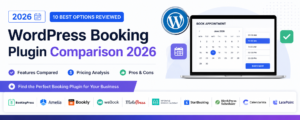
Selecting the right booking plugin is crucial. Your choice affects everything from customer experience to your daily workflow.
Key Selection Criteria
| Feature | Why It Matters | Questions to Ask |
|---|---|---|
| Ease of Use | You’ll use this daily | Is the interface intuitive? Can staff learn it quickly? |
| Payment Integration | Reduces no-shows, improves cash flow | Which payment gateways are supported? What are the fees? |
| Calendar Sync | Prevents double-bookings | Does it sync with Google Calendar/Outlook? |
| Reminders | Reduces no-shows by 80%+ | Are email and SMS reminders included? |
| Mobile Experience | 60%+ of bookings happen on mobile | How does the booking form look on phones? |
| Customer Management | Build relationships, not just appointments | Can you view booking history and customer notes? |
Recommended: JavistAB Booking + CRM
For this tutorial, we’ll use Javistab—a comprehensive solution that combines booking functionality with built-in CRM. This means you get appointment scheduling AND customer relationship management in one plugin, eliminating the need for multiple tools.
Key advantages:
- All-in-one booking and CRM functionality
- Intuitive interface designed for non-technical users
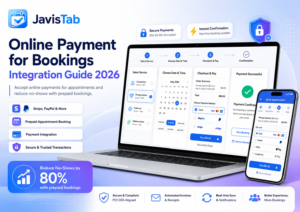
- Flexible payment options including Stripe and PayPal
- Automated email and SMS reminders
- Customer profiles with complete booking history
- Multi-staff and multi-location support
The principles in this tutorial apply to most booking plugins, so even if you choose a different solution, you’ll find the guidance valuable.
Step 2: Install and Activate
Installation Method A: From WordPress Repository (Free Plugins)
- Log into your WordPress dashboard
- Navigate to Plugins → Add New
- Search for your chosen booking plugin
- Click Install Now on the correct plugin
- Wait for installation to complete
- Click Activate
Installation Method B: Premium Plugin Upload
- Download the plugin ZIP file from the vendor website
- Log into your WordPress dashboard
- Navigate to Plugins → Add New
- Click Upload Plugin at the top
- Click Choose File and select your ZIP
- Click Install Now
- After installation, click Activate Plugin
- Enter your license key when prompted (usually in plugin settings)
Post-Installation Check
After activation, verify the plugin installed correctly:
- Look for the new menu item in your WordPress sidebar
- Check that your website frontend still loads properly
- Look for any error messages in the WordPress dashboard
If you see PHP errors or your site breaks, deactivate the plugin immediately and check that your server meets the requirements. Contact the plugin’s support if issues persist.
Step 3: Configure Basic Settings
Most booking plugins launch a setup wizard after activation. Follow it carefully, but also review these critical settings manually.
General Settings
Timezone: Set this to your business timezone. Incorrect timezone settings cause booking chaos—customers see wrong times, and your calendar becomes unreliable.
Date and Time Format: Match your local conventions. Use 24-hour time or AM/PM based on what your customers expect.
Currency: Select your currency. If you serve international customers, check whether the plugin supports multiple currencies.
First Day of Week: Sunday or Monday, depending on regional preference.
Business Information
Enter your business details—these appear in confirmation emails and customer communications:
- Business name
- Address
- Phone number
- Email address
- Website URL
Booking Rules
Minimum Notice: How far in advance must customers book? Common options:
- Same day (1-2 hours notice): Maximum flexibility
- 24 hours: Time to prepare
- 48+ hours: For complex services requiring preparation
Maximum Advance Booking: How far ahead can customers book? 30-60 days is typical. Longer periods work if you have stable availability, but require more calendar management.
Time Slot Intervals: Choose how appointments are displayed:
- 15-minute intervals: Most flexibility
- 30-minute intervals: Balance of options and simplicity
- 60-minute intervals: Simple, fewer choices
Buffer Time: Add padding between appointments for cleanup, preparation, or travel time. 10-15 minutes is common for most services.
Step 4: Add Your Services
Services are the core of your booking system. Set these up thoughtfully—they’re what customers actually book.
Essential Service Information
For each service, configure:
Service Name: Clear and descriptive. “60-Minute Deep Tissue Massage” is better than “Massage 1.”
Description: Write compelling, benefit-focused descriptions. Instead of listing what you’ll do, explain what the customer will experience and gain.
Example Service Description
Before (feature-focused): “One-hour consultation where we review your business and discuss strategies.”
After (benefit-focused): “Walk away with a clear 90-day action plan tailored to your business goals. We’ll identify your biggest opportunities and create a roadmap you can start implementing immediately.”
Duration: Total time needed, including any buffer. If you need 10 minutes between appointments, you can either add it here or use the global buffer setting.
Price: Your service price. Consider whether to show prices on the booking form or keep them hidden until checkout.
Service Categories
If you offer many services, organize them into categories. For example, a salon might have:
- Hair Services: Cut, Color, Style, Treatment
- Nail Services: Manicure, Pedicure, Gel
- Facial Services: Basic Facial, Anti-Aging, Acne Treatment
Categories help customers find what they’re looking for quickly, reducing abandonment.
Service-Specific Settings
Many plugins allow service-specific configurations:
- Staff assignment: Which team members can perform this service?
- Custom duration: Override default time slots for specific services
- Capacity: For group classes/sessions, how many can book one slot?
- Deposit amount: Different deposit requirements per service
- Custom fields: Additional questions to ask during booking
Step 5: Set Your Availability
Availability configuration prevents double-bookings and ensures customers only see times you’re actually free.
Regular Working Hours
Set your standard weekly schedule:
| Day | Status | Hours |
|---|---|---|
| Monday | Open | 9:00 AM – 6:00 PM |
| Tuesday | Open | 9:00 AM – 6:00 PM |
| Wednesday | Open | 9:00 AM – 8:00 PM |
| Thursday | Open | 9:00 AM – 6:00 PM |
| Friday | Open | 9:00 AM – 5:00 PM |
| Saturday | Open | 10:00 AM – 4:00 PM |
| Sunday | Closed | — |
Break Times
Add breaks to your schedule:
- Lunch break: Block 12:00-1:00 PM daily (or your preferred time)
- Buffer between appointments: Configure in general settings or per service
Holidays and Time Off
Block dates when you won’t be available:
- Public holidays
- Vacation days
- Personal appointments
- Training days
Calendar Synchronization
Connect your external calendars to prevent conflicts:
- Navigate to calendar integration settings
- Authorize connection to Google Calendar, Outlook, or Apple Calendar
- Select which calendars to sync
- Enable two-way sync if available
Two-way sync means:
- Bookings appear in your external calendar automatically
- Personal appointments block availability in your booking system
Step 6: Configure Payment Processing
Taking payments at booking time reduces no-shows dramatically. Even requiring a small deposit creates commitment.
Payment Gateway Setup
Stripe (Recommended)
Stripe is the most popular choice for its reliability and ease of setup:
- Create a Stripe account if you don’t have one
- In your booking plugin, navigate to payment settings
- Select Stripe as your payment gateway
- Click “Connect to Stripe” or enter your API keys
- For API key method: Copy your Publishable Key and Secret Key from Stripe Dashboard → Developers → API Keys
- Save settings and test with a small transaction
PayPal
- Ensure you have a PayPal Business account
- In payment settings, select PayPal
- Enter your PayPal email or Client ID/Secret
- Choose standard checkout or PayPal Checkout SDK
- Save and test
Payment Options to Configure
Full Payment: Customer pays entire amount when booking. Best for lower-priced services where full commitment is reasonable.
Deposit: Customer pays a percentage upfront, balance at appointment. Works well for higher-priced services. Common deposit amounts: 25%, 50%, or a flat fee.
Pay Later: No payment required at booking. Only use this for services where no-shows have minimal impact, or for trusted repeat customers.
Cancellation and Refund Policies
Configure clear policies:
- Free cancellation window: How long before the appointment can customers cancel for a full refund? 24-48 hours is standard.
- Late cancellation: What happens if they cancel after the window? Options include no refund, partial refund, or credit toward future booking.
- No-show policy: Typically no refund for no-shows.
Display these policies clearly during booking to set expectations.
Step 7: Customize Email Notifications
Automated emails keep customers informed and reduce support requests. Customize each type for professional, branded communication.
Essential Email Types
Booking Confirmation: Sent immediately after booking. Include:
- Appointment details (service, date, time, location)
- What to expect or how to prepare
- Cancellation/rescheduling instructions
- Contact information for questions
Reminder (24 hours before): Reduces no-shows significantly. Include:
- Appointment reminder with details
- Address and parking/transit information
- Last chance to reschedule if needed
Reminder (2 hours before): Final reminder for same-day appointments.
Follow-Up (after appointment): Thank the customer and:
- Request a review
- Suggest rebooking
- Offer relevant additional services
Email Customization Tips
- Use your business logo and brand colors
- Write in your brand voice (professional, friendly, casual—whatever fits)
- Keep subject lines clear and recognizable
- Include an “Add to Calendar” link if your plugin supports it
- Make contact information prominent
SMS Reminders (Optional)
If your plugin supports SMS (like Javistab), consider enabling text message reminders. SMS has much higher open rates than email—98% vs. 20%—making it highly effective for reducing no-shows.
Keep SMS messages brief and to the point. Include only essential information: time, date, and location.
Step 8: Create Your Booking Page
Your booking page is where customers actually schedule appointments. Design it for maximum conversions.
Method 1: Dedicated Booking Page
- Create a new page in WordPress (Pages → Add New)
- Name it something clear like “Book Now” or “Schedule Appointment”
- Add your booking plugin’s shortcode or block
- Publish the page
- Add the page to your navigation menu
Method 2: Embedded Booking Widget
Many plugins let you embed booking functionality within existing pages:
- Homepage: Add a booking widget in the hero section or sidebar
- Service pages: Embed booking for that specific service
- Contact page: Include booking as one contact option
Booking Page Best Practices
Minimize distractions: Remove unnecessary navigation, sidebar widgets, or content that might distract from booking. Consider using a landing page template.
Clear call-to-action: Make it obvious what visitors should do. “Select a Service Below to Book Your Appointment” is clearer than just showing the booking form.
Show social proof: Include testimonials, review ratings, or customer counts near the booking form.
Address objections: Answer common questions (cancellation policy, what to expect, location details) near the booking form.
Mobile optimization: Test thoroughly on mobile devices. Most bookings happen on phones.
Step 9: Test Everything
Never launch without thorough testing. Book yourself as a customer to experience exactly what customers will see.
Testing Checklist
Booking Process
- [ ] Can you select services easily?
- [ ] Does the calendar show correct availability?
- [ ] Are time slots accurate for your timezone?
- [ ] Can you complete a booking without errors?
- [ ] Does the payment process work? (Use Stripe test mode)
Emails
- [ ] Does confirmation email arrive promptly?
- [ ] Is all information correct in the email?
- [ ] Do reminder emails send at the right times?
- [ ] Are emails displaying properly (check on mobile)?
Calendar
- [ ] Does the booking appear in your external calendar?
- [ ] Does blocking time in external calendar update booking availability?
- [ ] Are buffer times applying correctly?
Customer Experience
- [ ] Can customers cancel/reschedule through email links?
- [ ] Is the mobile booking experience smooth?
- [ ] Are confirmation pages helpful and clear?
Ask Others to Test
Have friends or colleagues book test appointments without guidance. Watch where they get confused or stuck. Fix any friction points before launching publicly.
Step 10: Optimize for Conversions
A working booking system is just the beginning. These optimizations increase the percentage of visitors who actually book.
Reduce Form Fields
Every additional field reduces completions. Ask yourself: do I really need this information at booking time, or can I collect it later?
Essential fields: Name, email, phone (if needed)
Remove or make optional: Address (unless required for service), date of birth, how did you hear about us, company name
Add Trust Elements
- Display reviews/testimonials near the booking form
- Show security badges if accepting payments
- Include your cancellation policy prominently
- Add a satisfaction guarantee if applicable
Create Urgency (Ethically)
- Show limited availability: “Only 3 spots left this week”
- Display booking activity: “12 people booked this month”
- Highlight popular times: “This slot usually books fast”
Strategic CTA Placement
Put booking links everywhere visitors might want them:
- Header navigation (always visible)
- Homepage hero section
- Service pages (multiple times)
- Footer
- Blog posts (contextual links)
- About page
Speed Optimization
Slow booking pages kill conversions. Ensure fast loading by:
- Using quality hosting
- Optimizing images
- Enabling caching (but test that booking still works)
- Minimizing unnecessary plugins
For more detailed conversion optimization strategies, see our guide on increasing booking conversions.
Troubleshooting Common Issues
Booking Form Not Displaying
Possible causes:
- JavaScript conflict with another plugin or theme
- Shortcode entered incorrectly
- Plugin not properly activated
Solutions:
- Deactivate other plugins one by one to identify conflicts
- Switch to a default theme temporarily to test
- Check browser console for JavaScript errors
- Verify shortcode matches plugin documentation exactly
Emails Not Sending
Possible causes:
- Server email restrictions
- Emails going to spam
- Email settings not configured
Solutions:
- Install an SMTP plugin (WP Mail SMTP is popular)
- Configure proper From email address
- Check spam folders
- Test with multiple email providers
Wrong Timezone Display
Solutions:
- Verify WordPress Settings → General → Timezone is correct
- Check plugin-specific timezone setting
- Clear any caching plugins and refresh
Payment Processing Errors
Common issues:
- Invalid API keys (test vs. live keys mixed up)
- SSL certificate issues
- Payment gateway account not fully verified
Solutions:
- Double-check API keys are copied correctly
- Ensure you’re using live keys for production
- Verify your SSL certificate is active and valid
- Complete all verification steps in your payment gateway account
Launch Your Booking System Today
You now have everything you need to add a professional booking system to your WordPress website. From initial setup to conversion optimization, you’re equipped to create a seamless booking experience that works around the clock.
The businesses that thrive are those making it easy for customers to say yes. Every minute a customer spends waiting to book is a minute they might choose a competitor instead. Your new booking system eliminates that friction entirely.
Remember: implementation is just the beginning. Monitor your booking analytics, listen to customer feedback, and continuously optimize. Small improvements compound into significant revenue growth over time.
Ready to Start Taking Online Bookings?
JavistAB provides everything you need—booking system, CRM, and customer management in one WordPress plugin. Get started in minutes.
Try Free Demo See All Features