
What a restaurant reservation system must control
A restaurant reservation system is more than a calendar. It decides whether a real piece of inventory—usually a table, a combination of tables, a private room, or a fixed number of covers—can be promised for a specific service period. It must also preserve enough time for dining and reset, distinguish a request from a confirmed reservation, and give the host team a single operational record. If those rules remain in a paper diary while WordPress merely collects a form, the website has not solved availability.
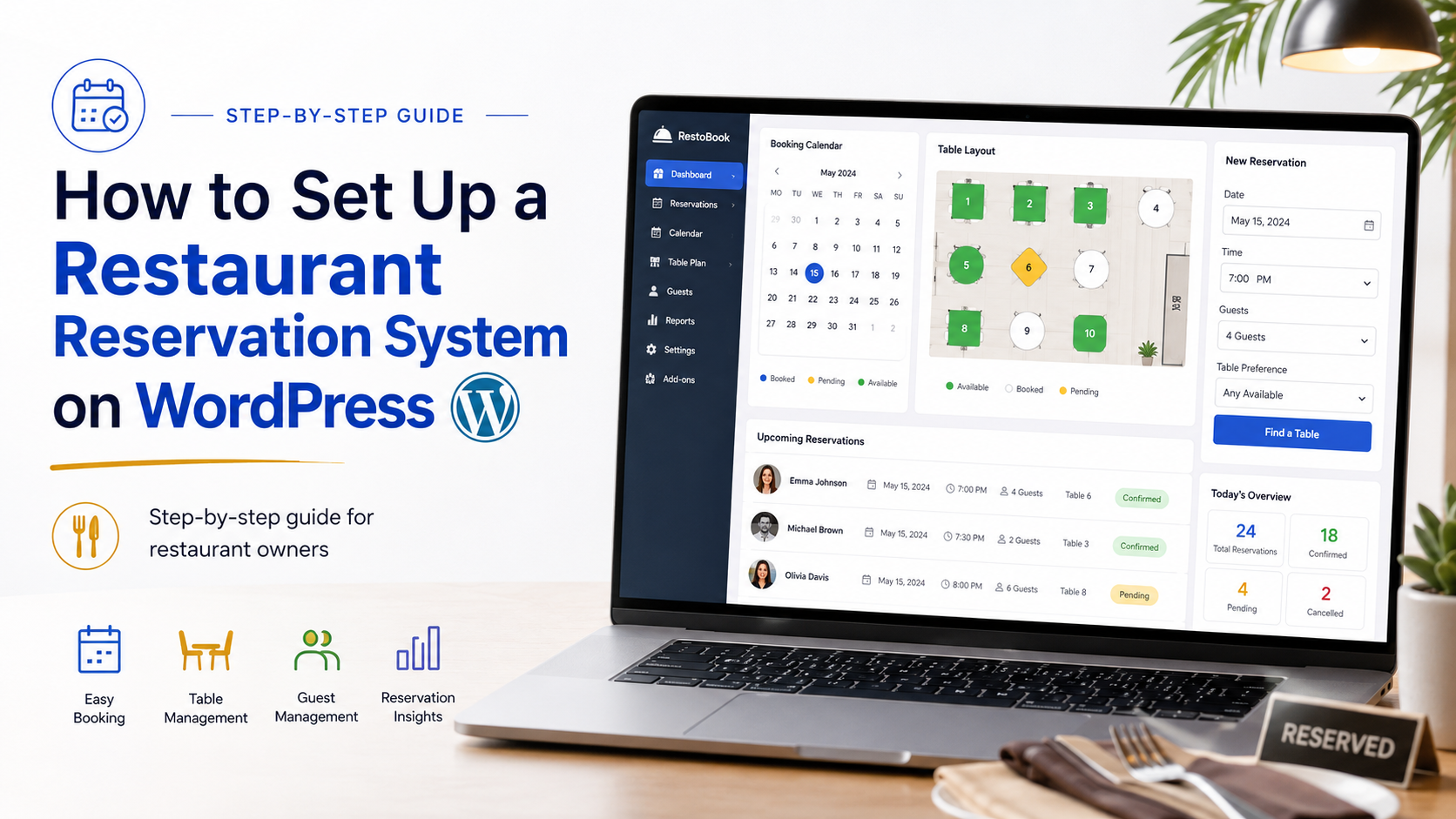
Javis Booking Pro Plugin includes a restaurant_reservation flow. Its default guest journey is location, party size, date, time, package, details, payment, and confirmation. The restaurant preset hides appointment-only choices such as staff and foregrounds party size and packages. Presets change labels, step order, and interface defaults; they do not replace the shared booking, availability, or payment engines.
Prerequisites before configuration
- A maintained WordPress site with HTTPS, current backups, and a staging copy.
- The supplied Javis Booking Pro ZIP and the permissions needed to install plugins.
- One written sheet for every location: timezone, currency, weekly hours, closures, service periods, lead time, booking horizon, and contact details.
- A table or capacity list with names, minimum and maximum party sizes, rooms or floors, and combinations staff actually permit.
- A policy for late arrivals, cancellations, large parties, deposits, refunds, and customer data.
- Test credentials for any payment gateway and access to the restaurant’s sending email domain.
Do not start by importing months of reservations. First prove one location, two service periods, a small sample of tables, and one payment path. A narrow test exposes incorrect assumptions faster and gives staff a stable reference configuration.
Step 1: install the plugin safely
Create a backup and test the ZIP on staging. In WordPress, open Plugins → Add New → Upload Plugin, select javis-bookingpro.zip, install, and activate it.. Review the new Booking Pro administration pages before changing settings, and restrict access to managers who genuinely need booking or payment data.
If activation produces an error, record the WordPress and PHP versions and capture the error log before rolling back. Avoid repeatedly uploading over a partially installed directory. A clean, reproducible staging installation is evidence that the production change will be supportable.
Step 2: select the restaurant flow and business identity
Choose the restaurant industry or restaurant_reservation flow in the setup experience. Enter the public location name, address, phone, email, timezone, base currency, and language. Timezone is operational data: an incorrect value shifts availability, reminders, calendar events, and reports even when the form looks normal.
If the catalog is empty, the plugin can offer restaurant starter entries such as Lunch Reservation, Dinner Reservation, Chef’s Tasting, and Private Dining. Starter content is optional seed data, not a finished menu. Rename, price, schedule, or remove every entry so guests never see demo wording.
Step 3: define opening hours, shifts, and booking boundaries
Configure the weekly schedule, holidays, exceptional closures, minimum lead time, and maximum advance window. Then create bookable service periods such as lunch and dinner. Separate service periods when they have different table inventory, pricing, menus, or arrival rules; do not create arbitrary 15-minute slots simply because a calendar permits them.
Set a realistic dining duration and reset buffer. If a table booked at 18:00 is occupied for 120 minutes and needs 15 minutes before reuse, the next promise cannot begin at 20:00. Model the full occupancy window. Test the boundary around closing time and a closure day, not only a convenient midday slot.
Step 4: model tables, rooms, and capacity
Add floors or rooms, then create resources with clear operational names such as Main-T12 or Terrace-T4. Record their seat capacities and any constraints. JavisTab’s table and resource tools are the foundation for restaurant availability; the public form should never promise a party that the host cannot seat.
Choose the appropriate capacity approach:
| Capacity model | Best use | Critical test |
|---|---|---|
| By tables | Assigned seating, distinct table sizes, rooms, or floor-plan operations | Two guests cannot capture the last suitable table at the same time |
| By guests | Buffet, tasting, cruise, or event-style service with a total cover limit | The final covers sell once, then the slot becomes unavailable |
| Mixed operating rule | Staff care about both total covers and table fit | A large party cannot pass the cover limit or consume an impossible table layout |
Keep unusual combinations in the host process unless the system explicitly supports the rule you need. For example, joining two four-tops for six guests may be valid on Monday but not Saturday. Document that exception rather than silently inflating table capacity.
Step 5: create packages and price logic
Use packages for bookable experiences such as a tasting menu, chef’s table, holiday seating, or private dining minimum. Give each option a clear name, description, price basis, inclusions, duration, and cancellation terms. The restaurant flow shows packages but hides the appointment-style service step, which keeps the guest journey focused.
Test adults, children, add-ons, taxes, service charge, coupons, and zero-decimal currencies where applicable. The amount in the form summary, booking record, gateway, invoice, and confirmation email must agree. A beautiful checkout with inconsistent totals is not ready for launch.
Step 6: configure deposits and payment choices
Decide whether every guest sees payment or only higher-risk parties must pay. Version Javis Booking Pro supports pay at venue, deposit-required, and prepaid paths. It also exposes a guest-count deposit_threshold, a fixed base-currency deposit_amount, and an opt-in rule that can require a large-party deposit even when normal payment is hidden.
Enable at least one collection method before making a deposit mandatory. The supplied build registers PayPal, Stripe, Square, Razorpay, OnePay, and bank transfer. A method is collectable only when its required credentials are ready; secret credentials should never be exposed in browser code. If no enabled collection route is available, keep the reservation manually pending rather than presenting it as paid.
Step 7: prepare customer details and notifications
Ask only for data needed to deliver the reservation: name, reliable contact details, dietary or accessibility notes where appropriate, and consent choices that are genuinely used. Explain why sensitive notes are collected and define retention. JavisTab integrates with WordPress personal-data export and erasure tools, but the restaurant still owns access control, retention, backups, and the privacy notice.
Configure confirmation, reminder, cancellation, payment, and staff messages. Use the same location name, timezone, amount due, balance, policy link, and change instructions everywhere. Send from an authenticated domain and test delivery to more than one mailbox provider. An email appearing in a plugin log does not prove that the guest received it.
Step 8: publish the booking experience
Create a focused page such as /reserve/ and insert [rbp_booking_form]. For a multi-location site, use the appropriate location-aware or multi-form shortcode and ensure the selected branch remains attached to its services, slots, payments, and messages. The supplied build also includes shortcodes for booking lookup, availability calendar, table or resource display, currency switching, language switching, and confirmation experiences.
Place the reservation page in the main navigation, mobile menu, location pages, and high-intent calls to action. Keep it free from heavy sliders, autoplay media, or page caching that freezes dynamic availability. The form should work by keyboard, provide explicit field labels and errors, and preserve entered data after a recoverable validation error.
Step 9: run a release test matrix
Test as a guest in a private browser and as a host in WordPress. Use real operational scenarios, not only a happy path.
- Book a two-top below any deposit threshold and confirm the correct table or capacity reduction.
- Book exactly at and above the large-party threshold; verify the fixed deposit and remaining balance.
- Submit two browsers for the final suitable table at nearly the same moment; only one should succeed.
- Change party size, date, package, and location, then confirm availability and totals recalculate.
- Fail or abandon a payment, then retry without producing duplicate reservations or receipts.
- Cancel and refund according to policy; verify the table is released and every record agrees.
- Mark arrivals, completion, cancellation, and no-show so staff understand the operational lifecycle.
- Export a customer’s data and test the documented erasure process on staging.
Troubleshooting common launch problems
| Symptom | Likely cause | Safe correction |
|---|---|---|
| Slots look available but fail at submit | Stale cached page or another guest took the last inventory | Exclude dynamic requests from full-page caching and keep the final server-side check |
| Times are shifted | WordPress, location, server, or calendar timezone mismatch | Choose one documented location timezone and retest around midnight and daylight-saving changes |
| Deposit step never appears | Threshold, payment visibility, or conditional-deposit switch is inconsistent | Test below, exactly at, and above the threshold with an enabled method |
| Confirmation exists but staff see no payment | Callback, signature, or credential failure | Inspect gateway and plugin logs; never mark payment manually without reconciliation evidence |
| Large parties see impossible availability | Table capacities or combination rules are too broad | Correct resource data and document manual approval cases |
Go-live checklist and ownership
Name an owner for schedules, closures, tables, packages, payments, notifications, privacy requests, and updates. Take a fresh backup, deploy during a quiet period, clear only the necessary caches, and complete one controlled live reservation. Monitor failed submissions, payment callbacks, email delivery, and staff questions daily for the first week. Review capacity and dining duration after actual turns, rather than treating the initial configuration as permanent.
Frequently asked questions
Can JavisTab prevent double bookings?
It can calculate availability against configured tables, resources, capacity, schedules, and existing bookings, but prevention depends on correct inventory data and a final server-side submission check. Prove the last-table race on staging. No plugin can compensate for tables that staff block or reassign outside the shared system without updating it.
Do I need online payment for every reservation?
No. A restaurant can allow pay at venue, show optional deposit or prepayment choices, or require a fixed deposit only when the party reaches a configured guest threshold. Match the rule to measurable risk and publish the cancellation and refund terms before the guest confirms.
Which shortcode publishes the form?
The supplied Javis Booking Pro Plugin source registers [rbp_booking_form] for the core form and [rbp_booking_form_multi] for a multi-form experience. Use the shortcode present in the installed build and test it in the production theme; do not copy a similarly named shortcode from an outdated screenshot.
Should restaurants expose a table map to guests?
Only when the map reflects real assignable inventory and the business is comfortable promising a specific table. Many restaurants should let guests choose date, time, party size, and area preference while the host assigns the exact table. The operational floor plan can still improve staff control without becoming a customer promise.
What should be reviewed after launch?
Review failed form steps, no-show rate, deposit conversion, table utilization, average lead time, cancellations, unconfirmed bank transfers, and support tickets. Update hours and closures immediately. Re-test payments, the last-table race, notifications, and rollback after every material plugin, theme, cache, or gateway change.
NEXT STEP Review JavisTab’s restaurant table-management guide, compare the shortlisted WordPress restaurant booking plugins, open the live demo, and start with the Free Forever route only after the release test matrix passes.